
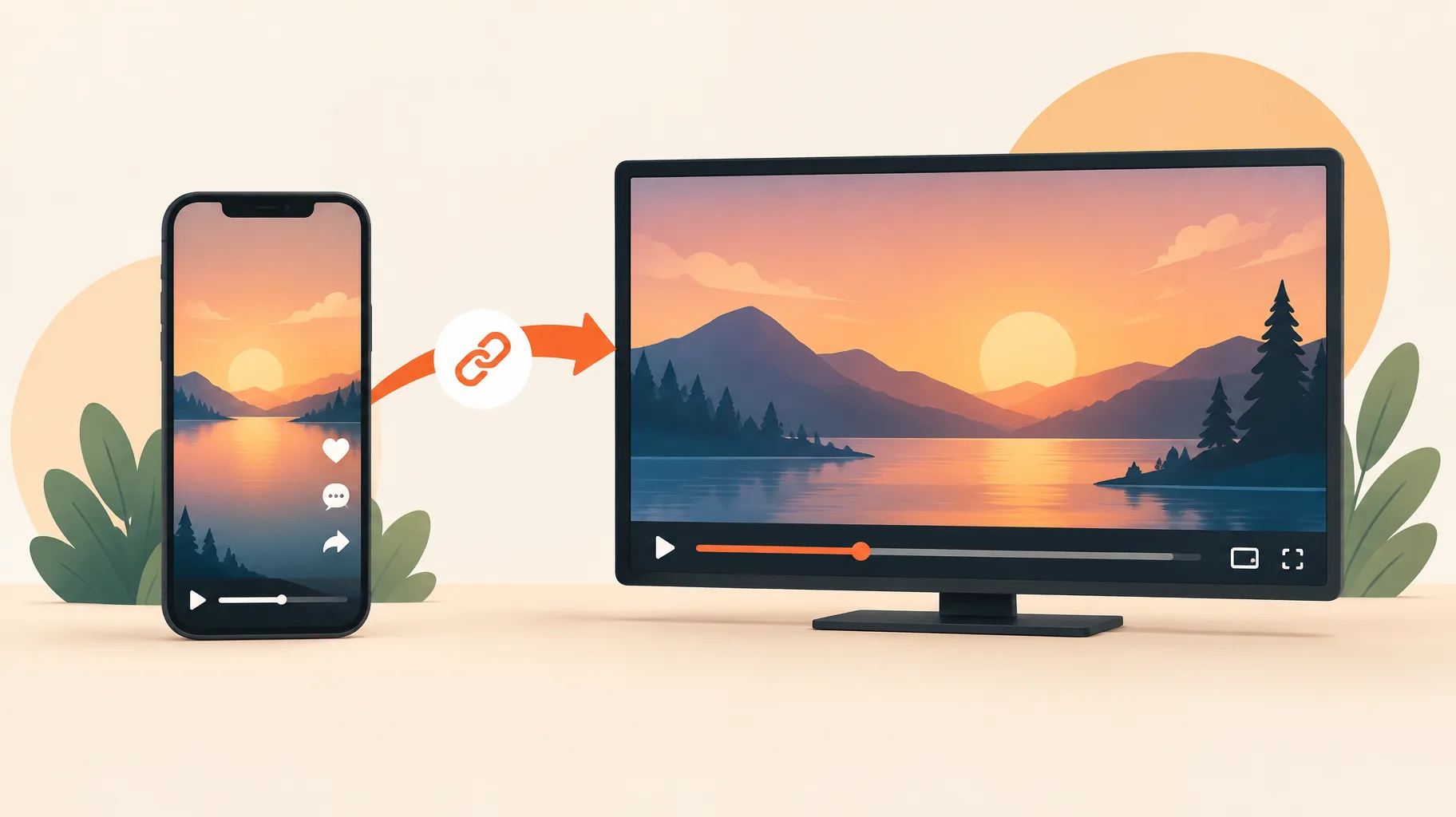
To link a YouTube Short to a long-form video, use YouTube's Related Video feature inside YouTube Studio. With advanced feature access enabled on your channel, attach a public or unlisted video from your own channel to the Short, and YouTube shows a clickable link below your channel handle. Pasted URLs in Shorts descriptions and comments do not work.
Key takeaways:
- URLs in YouTube Shorts descriptions and comments became non-clickable on August 31, 2023, so the Related Video feature is the only reliable clickable route from a Short to another video.
- The Related Video link appears below the channel handle on the Short and requires advanced feature access on your account.
- The destination must be a public or unlisted video on your own channel, not another creator's upload.
- YouTube's July 14, 2026 guidance says a clipped Short must work as a standalone piece of value, so the link should continue interest rather than rescue an incomplete clip.
- The full setup takes about 10 to 20 minutes per Short once advanced features are active.
Are links in YouTube Shorts descriptions and comments clickable?
No. URLs in YouTube Shorts descriptions and comments became non-clickable on August 31, 2023, according to YouTube's policy history. Any link you paste into a Short's description or a pinned comment renders as plain text that mobile viewers cannot tap. This is why creators who rely on "link in the description" see almost no onward traffic from Shorts: the route is broken by design. The supported alternative is the Related Video feature, which creates a genuinely clickable connection between the Short and a destination video.
How do I link a YouTube Short to a long video, step by step?
The whole procedure takes 10 to 20 minutes per Short, assuming advanced feature access is already active on your channel. If you still need to verify your account for advanced features, add a few days for that to clear. The steps below follow YouTube's Related Video documentation.
Step 1: Confirm advanced feature access.
Action: Open YouTube Studio, go to Settings, then Channel, then Feature eligibility, and check that Advanced features shows as enabled.
What it requires: A verified channel in good standing. If advanced features are not yet active, complete the verification YouTube offers there.
How to tell it worked: The Related Video option appears when you edit a Short's details.
Step 2: Choose an eligible destination video.
Action: Pick the long-form video the Short should send viewers to.
What it requires: The destination must be a public or unlisted video on your own channel. Private videos and other channels' uploads are not accepted.
How to tell it worked: The video appears in the picker when you search for it in the next step.
Step 3: Add the Related Video link.
Action: In YouTube Studio, open the Short's details, find the Related Video option, and select your destination video.
What it requires: The Short and the destination must live on the same channel.
How to tell it worked: Watch the Short in the Shorts player and confirm a link appears below your channel handle.
Step 4: Align the Short's promise with the destination.
Action: Check that the Short's final seconds name what the long video delivers, so the click feels like a continuation rather than a detour.
What it requires: A Short that already makes sense on its own; the link extends curiosity, it does not patch a confusing clip.
How to tell it worked: In YouTube Analytics, the destination video starts showing the Short as a traffic source.
Where does the link appear, and what access do I need?
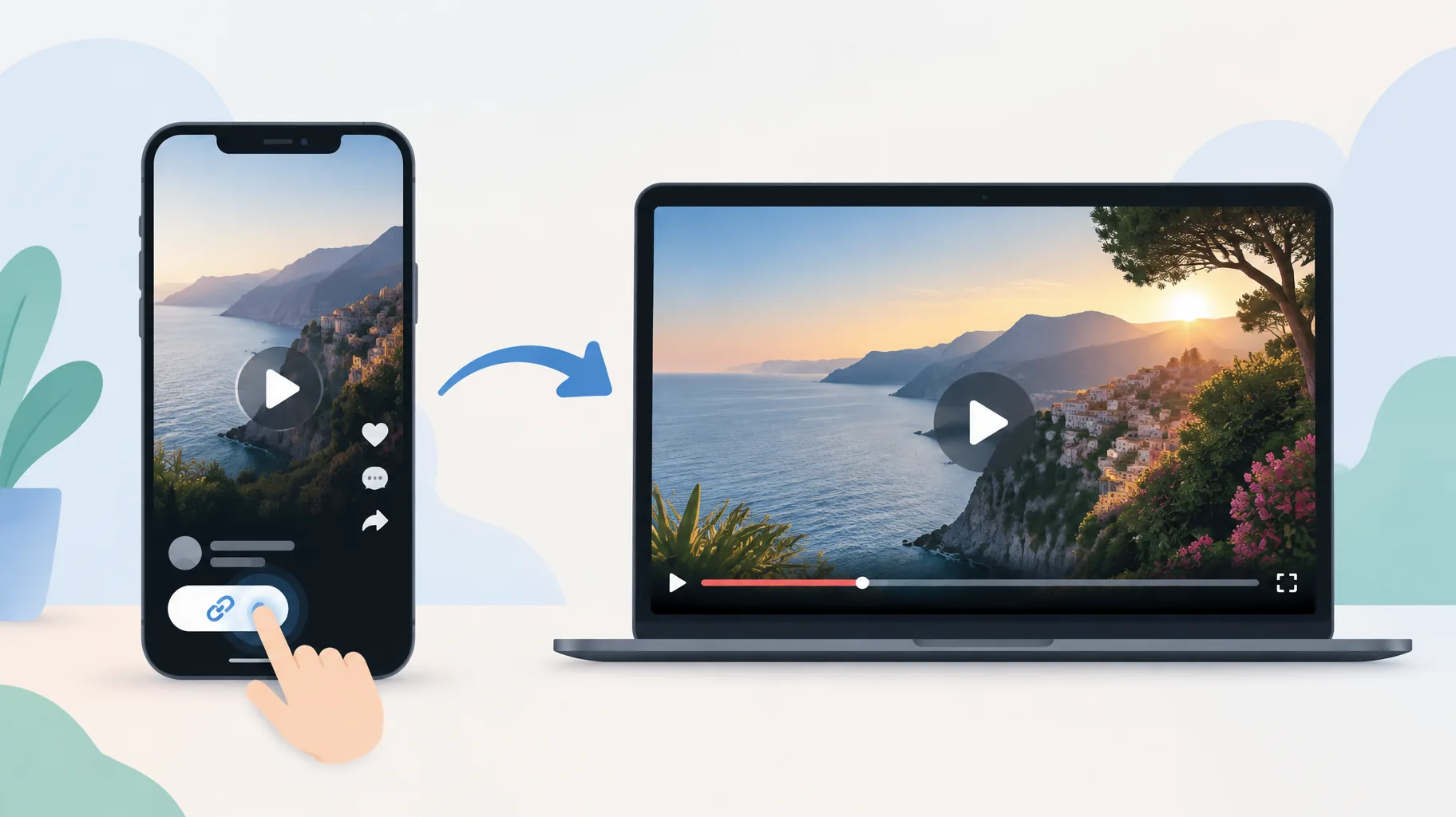
The Related Video link appears directly below the channel handle in the Shorts player, per YouTube's feature documentation. That placement matters: it sits inside the viewing interface where the viewer's attention already is, not buried in a description panel they would have to open, and because it renders as a tappable element it survives the August 31, 2023 change that stripped clickability from pasted URLs.
Adding it requires advanced feature access, which sits behind YouTube's feature-eligibility checks, typically verifying your identity or building channel history. If the Related Video option does not appear when you edit a Short, the missing prerequisite is almost always this access level rather than anything about the Short itself. Check Settings, then Channel, then Feature eligibility before troubleshooting anything else. When you test, view the Short on a phone in the Shorts feed, since that is where most of your audience will encounter the link.
Can I link a Short to an unlisted video or another channel's video?
You can link to an unlisted video, but not to another channel's video. The Related Video feature accepts a public or unlisted destination, and the destination must live on the same channel as the Short, according to YouTube's documentation. The unlisted option is useful when you want the long video reachable only through the Short, for example a bonus tutorial or an extended cut. If you want to send viewers to a collaborator's upload, there is no supported clickable mechanism from a Short; the cleanest workaround is to publish your own companion video and link that instead.
How do I make a clipped Short work without the full video's context?
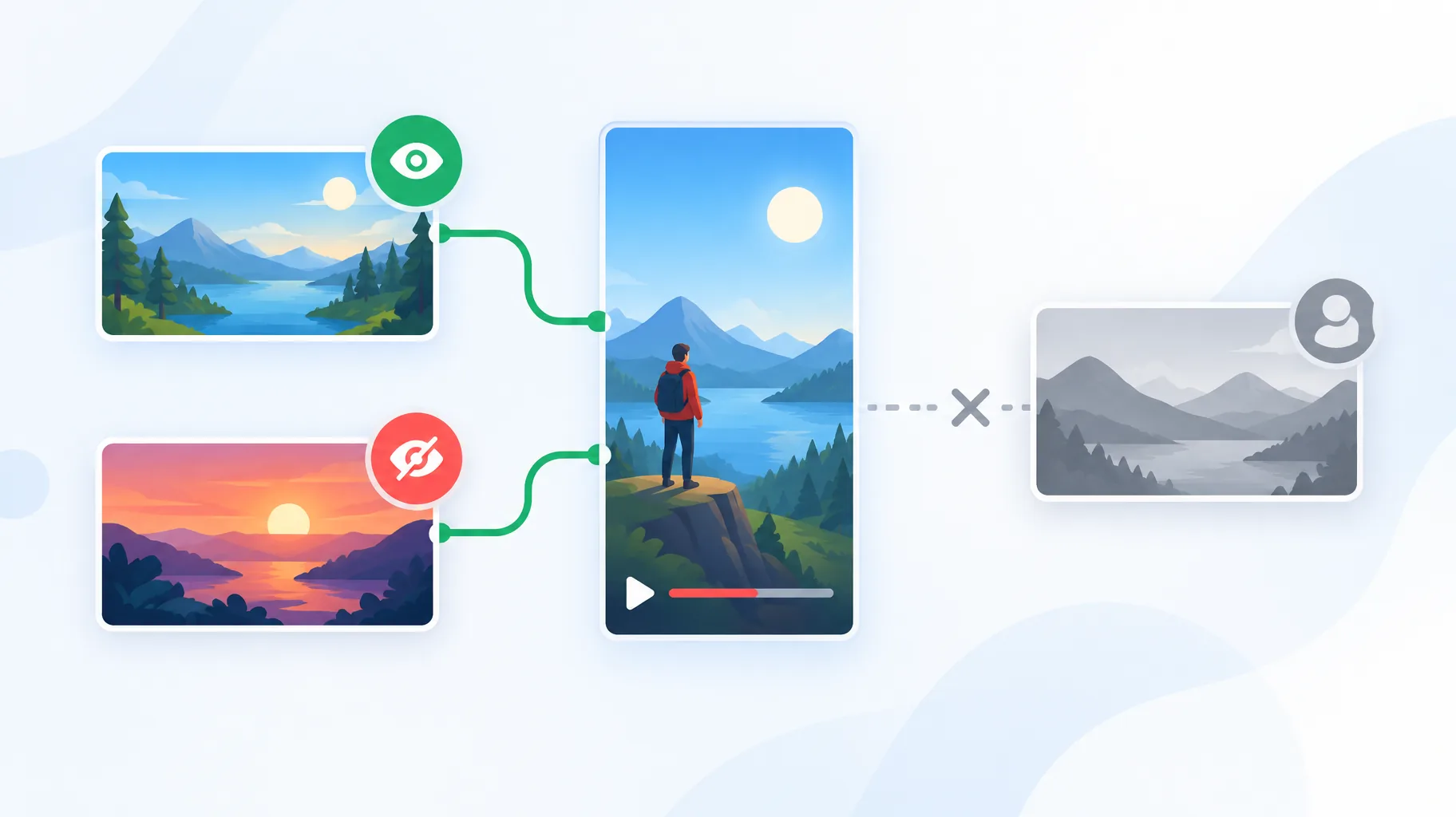
A clipped Short must deliver a complete thought on its own, with the long video positioned as the deeper version rather than the missing half. In July 14, 2026 guidance on the YouTube blog, YouTube's Julia Lee Harter wrote: "If you are clipping moments from existing long-form content, ensure the Short functions as a standalone piece of value that makes sense without outside context." In practice that means three edits to most clips:
- Add a one-line setup at the start so a cold viewer knows what question the Short answers.
- Cut any reference to "earlier in the video" or visuals that only make sense with prior footage.
- End on the natural next question, which is exactly what the linked long video should answer.
A Short that withholds its point to force a click tends to lose the viewer before the link ever appears. Retention and onward clicks are separate stages, so diagnose them separately; our breakdown of YouTube Shorts retention rate benchmarks covers the first stage in detail.
What should the destination video deliver after someone clicks?
The destination video should answer, within its first 30 seconds, the exact question the Short ended on. A viewer who taps the Related Video link has already accepted one idea from you; the long video's job is to pay that off immediately, then expand. If the Short teased "the three mistakes that kill faceless channels," the long video should name mistake one almost at once, not after a two-minute intro. Misalignment here is the most common reason Shorts-to-long-form journeys underperform even when the link works perfectly. If your Shorts get views but the channel still is not converting them into long-form watch time, a structured check of the whole funnel, like the one in our faceless channel diagnostic workflow, will show whether the break is the hook, the link, or the destination.
One practical production note: instead of clipping, you can produce a purpose-built companion Short that summarizes the long video's core idea and ends on its natural next question. GoFaceless (our own product) is one way to do that, turning a brief into a finished vertical Short with script, voiceover, visuals, and captions in one pass. The clickable Related Video connection itself must still be configured in YouTube Studio using the steps above; no production tool can set that link for you.
Put the link to work
The mechanics are simple: advanced features on, eligible destination chosen, Related Video attached, promise aligned. The harder part is producing Shorts that earn the click. If you want a faster way to make standalone companion Shorts for your long-form videos, try GoFaceless and turn your next video's key idea into a finished Short in minutes.
Sources & further reading
Keep reading

The Growth of AI-Generated Shorts: What Creators Need to Know
Learn what the available 2026 AI Shorts data says about creator adoption, render time, originality, disclosure, and testing workflows.

Should You Use YouTube Shorts for Faceless Content?
Learn when YouTube Shorts makes sense for faceless content, what RPM to expect, and how to choose Shorts-first, long-form, or hybrid.
How to Build and Monetise a Faceless YouTube Channel
A practical map for building a faceless YouTube channel—from choosing a niche and making videos to growing on Shorts and creating multiple revenue streams.