
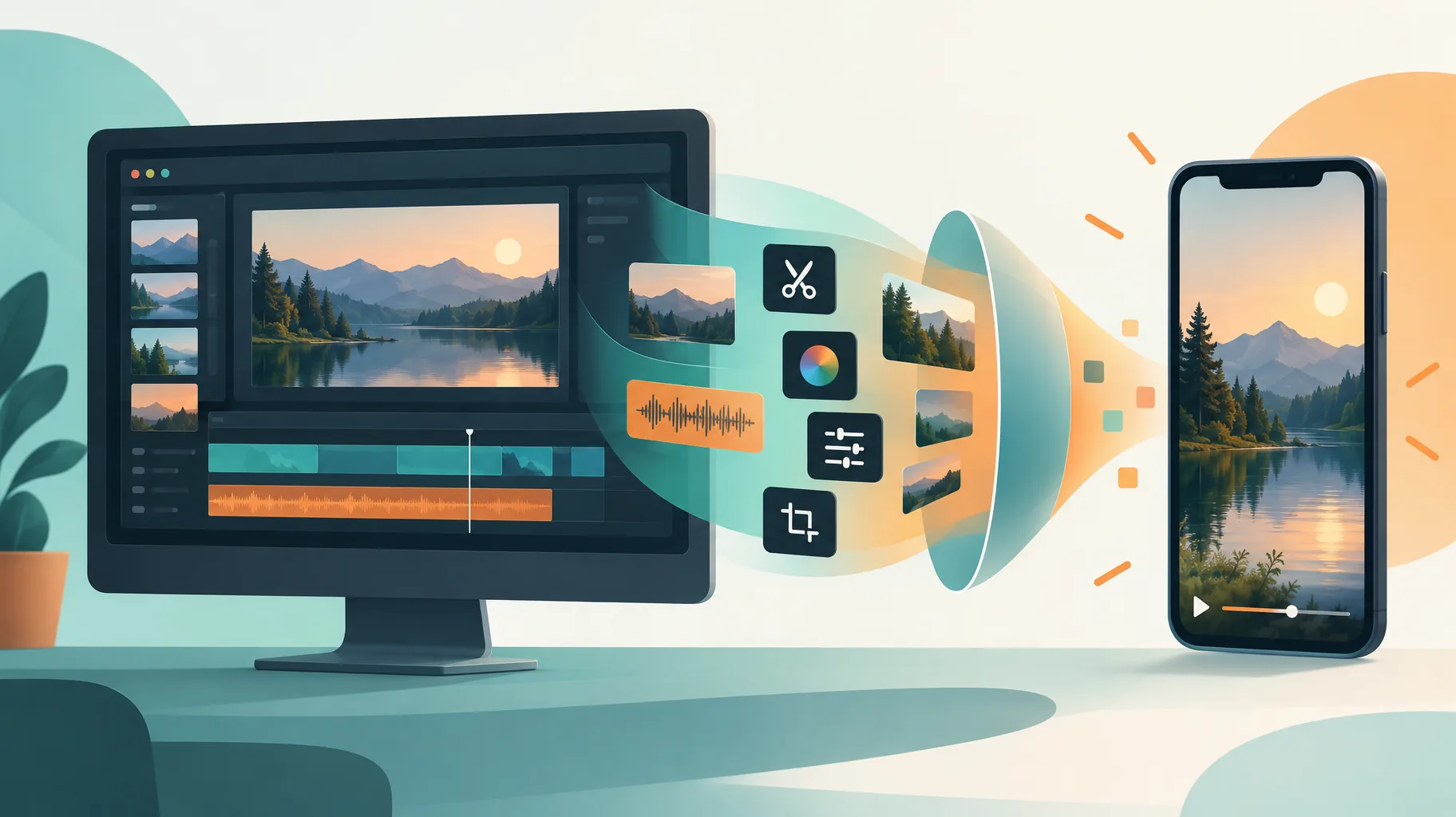
You turn existing screen recordings into standalone short videos by treating each clip as a new asset, not a fragment: inventory your recordings, isolate one self-contained viewer question per clip, cut every reference to material shown earlier, rebuild the missing context with a short intro line or captions, and review the result as a cold viewer would.
Key takeaways:
- A standalone clip answers exactly one viewer question; if it needs the original recording to make sense, it is not ready.
- On November 24, 2026, OpenReel announced an editing agent that assembles existing recordings, removes filler, and extracts highlights, but these remain vendor-described capabilities, not independently measured results.
- OpenReel President Matt McCurdy stated: "Most teams record more good material than they ever publish. Editing is the bottleneck."
- Any pronoun, "as I showed earlier", or unexplained cursor jump in an extracted clip is a context debt you must either cut or repay with added narration.
- An AI-selected highlight is a draft selection, not a publish decision; review every extracted clip for orphaned references before posting.
How do I turn screen recordings into short videos that stand alone?
Turning screen recordings into short videos that stand alone is a five-step editing process, not a trimming task. The full pass takes roughly 20 to 45 minutes per clip once you have done it a few times: inventory, isolate, strip, contextualize, review. The prerequisites are simple: the original recording file, a way to scrub and cut it (any editor works), and a written sentence stating what the clip teaches.
- Inventory your recordings.
Action: List every unused recording with its length, topic, and the questions it answers.
What it requires: A spreadsheet or doc; 30 to 60 minutes for a typical backlog.
How to tell it worked: Each row names at least one discrete viewer question, not just a topic. "How to connect the API key" qualifies; "webinar replay" does not.
- Isolate one self-contained question per clip.
Action: Mark the in-point where the answer begins and the out-point where it resolves.
What it requires: Scrubbing the recording for moments where a single problem gets a complete answer.
How to tell it worked: You can state the clip's promise in one sentence a stranger would understand, and the footage between your marks delivers it.
- Strip context-dependent references.
Action: Cut or cover anything that points outside the clip: "as I showed earlier", "going back to the dashboard", unexplained jumps, mid-sentence starts.
What it requires: Frame-level trims, plus a plan for references you cannot cut (see the context section below).
How to tell it worked: A transcript of the clip contains no pronoun or phrase whose meaning lives in footage the viewer will never see.
- Establish the missing context.
Action: Add a one-line spoken or captioned setup naming the tool, the goal, and the starting state.
What it requires: A short voiceover line, a title card, or an opening caption; 5 to 15 minutes.
How to tell it worked: The first three seconds tell a cold viewer what they are looking at and why they should keep watching.
- Review as a cold viewer.
Action: Watch the exported clip with the sound on, then once muted with captions, and note every moment of confusion.
What it requires: Ideally a second person who never saw the original recording.
How to tell it worked: The reviewer can repeat back what the clip taught without asking a single clarifying question.
Which parts of a long screen recording can work as standalone clips?
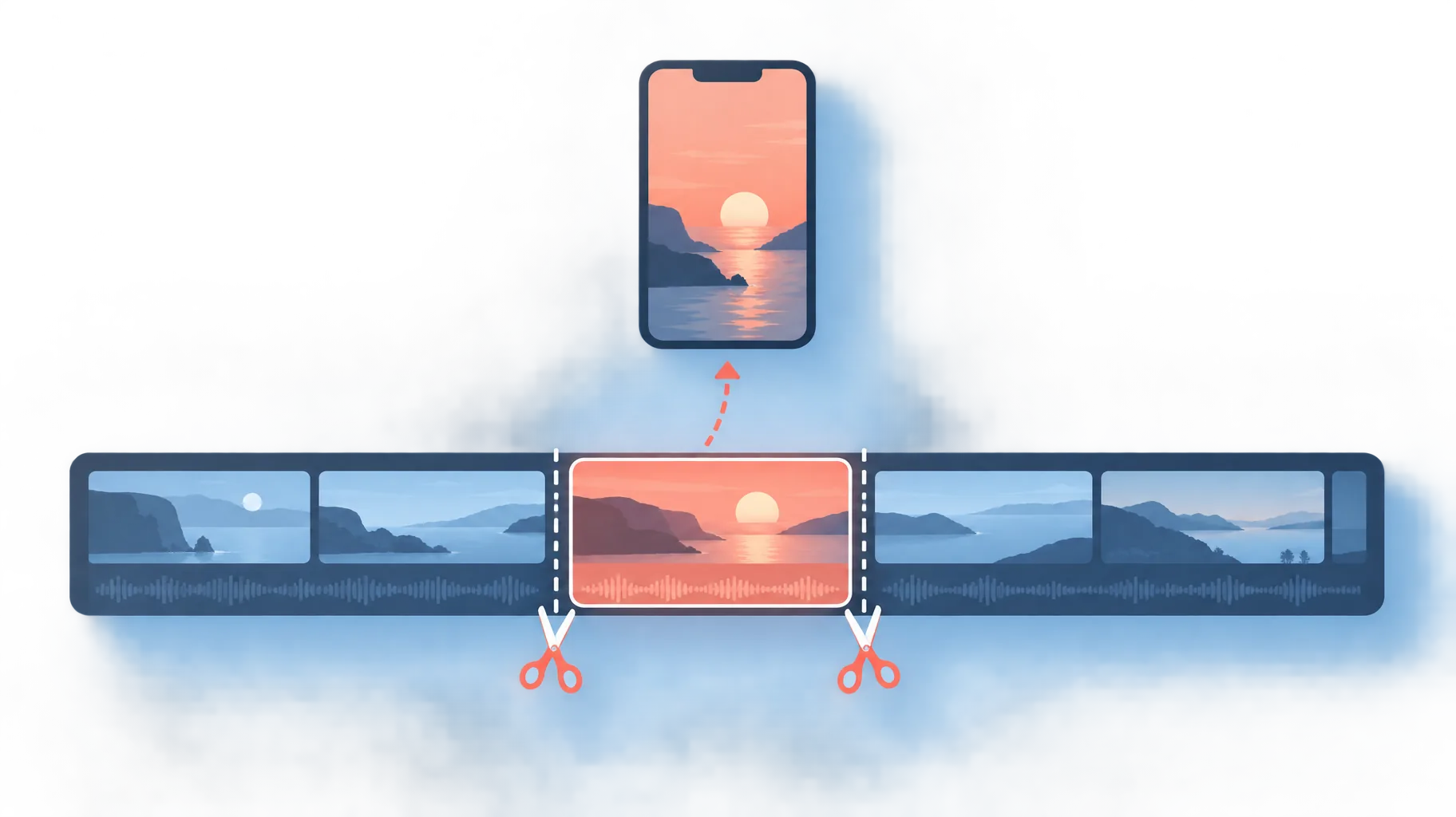
The parts of a long screen recording that work as standalone clips are complete micro-explanations: a single feature demonstrated start to finish, one error diagnosed and fixed, a before-and-after setting change, or a direct answer to a question someone asked on the call. A 90-minute tutorial typically contains three to eight of these. The test is completeness, not length: a 40-second segment that fully answers "how do I export this as CSV" beats a polished three-minute segment that assumes the viewer watched the setup.
Segments that fail the test share a signature: they open mid-thought, resolve a problem introduced ten minutes earlier, or end by teeing up the next section. Leave those in the long recording, or plan to rebuild their context deliberately.
How do I add context when a highlight starts halfway through an explanation?
You add context to a highlight that starts halfway through an explanation by front-loading a compressed setup: one sentence of narration or a title card that states the tool, the goal, and the current state of the screen. For example, a clip that begins with "so now the sync just works" needs a setup like "Connecting a Notion database to a calendar, step three of three." That single line replaces minutes of earlier footage.
Three context tools, in order of effort:
- Opening caption or title card (fastest): names the software, the task, and the starting point.
- Recorded narration line (strongest): a 5 to 10 second voiceover that frames the problem before the original audio resumes.
- Brief B-roll or zoom (situational): a half-second establishing shot of the full interface before the clip jumps into a close-up, so viewers know where on screen to look.
If the clip's opening hook is weak even after contextualizing, borrow a proven opener pattern from a free hook library rather than inventing one under deadline.
What should I remove when a clip refers to something shown earlier?
Remove every reference whose meaning depends on footage outside the clip: verbal callbacks ("like we did with the first project"), visual callbacks (returning to a screen the viewer never saw configured), and assumed vocabulary (acronyms defined earlier in the recording). Each orphaned reference is a moment where a cold viewer feels the video was not made for them, and that feeling ends watch sessions.
Two repair paths exist for references you cannot cleanly cut. First, cover the audio: mute the callback sentence and lay a neutral narration line over the same frames. Second, re-cut around it: if the reference sits at a natural pause, trim both sides and join the remaining footage. When a clip needs so many repairs that the joins become visible, the honest move is to re-record that segment fresh; a 60-second re-shoot is cheaper than a stitched clip that reads as broken. If the re-shot segment ends up shorter than your narration, the fix is a timing adjustment, and there is a dedicated walkthrough for closing the gap when a clip is too short for its voiceover.
When should I add captions, narration, or B-roll to an extracted clip?
Add captions to every extracted clip by default, narration when the original audio assumes missing context, and B-roll only when the screen alone cannot carry the point. Captions are the baseline because a large share of short-form viewing happens muted, and screen recordings are unusually dependent on audio explanation. Narration earns its place when you stripped a verbal callback and the visuals now play in silence, or when the original speaker rambled and a tight replacement line does the job in half the time.
B-roll is the most overused of the three. It helps when the clip describes something off-screen (a result, a physical product, a concept) and hurts when it covers the very interface the viewer came to see. If you are deciding between tightening the narration and cutting more footage, the same trade-off applies to pacing generally, and it is worth reading up on when to speed up voiceover versus shorten the script before you commit.
What should I check before publishing an AI-selected highlight?
Before publishing an AI-selected highlight, check three things: that the selection is a complete thought, that no reference points outside the clip, and that every factual claim in it is still accurate. Automated highlight extraction is now a real workflow category. On November 24, 2026, OpenReel announced an editing agent intended to assemble existing recordings, remove filler and repetition, apply captions and branding, add B-roll, and extract highlights, according to the company's announcement. Those are vendor-described capabilities, not independently benchmarked outcomes, so treat them as a reason to try the workflow, not as a promise of publish-ready output.
The market context is real even if the performance claims are unverified. OpenReel President and General Manager Matt McCurdy stated in the same announcement: "Most teams record more good material than they ever publish. Editing is the bottleneck." That matches what most tutorial creators already know from their own hard drives. But an agent's selection is a draft. Run the cold-viewer review from step five on every extracted clip, because the failure modes (orphaned references, mid-thought openings, stale claims) are exactly the ones an extraction pass is worst at noticing. If you are weighing an agent against applying individual AI tools yourself, the agent-versus-manual editing decision has its own trade-offs worth understanding first.
Does using an editing agent mean I need to generate new footage?
No. The entire premise of an assembly-style editing agent is that your existing recordings are the raw material: the agent trims, captions, brands, and extracts from footage you already have rather than synthesizing replacement visuals. The OpenReel announcement describes assembling recordings teams already possess, which is why this workflow matters for educators and small teams sitting on demonstration backlogs.
Generating new footage is a separate decision, appropriate only when no recording exists for the topic or the existing one is unusable. For the assembly layer itself, one practical option is GoFaceless (our own product): you can import or reference existing material and use it to produce the connecting narration, captions, and finished vertical or 16:9 export in one pass, which suits the contextualizing step in particular. A general-purpose editor with a transcript view works too if you prefer hands-on control; the process in this post is tool-agnostic by design.
Putting it into practice
Pick one recording from your backlog this week and run the five steps on a single segment. The first clip is the slow one; by the third, the inventory-to-publish loop compresses toward the 20-minute end of the range. If you want the assembly, narration, and captioning handled in one place, GoFaceless plans start at $29/mo with a preview before anything exports. Either way, the skill that matters is the one no agent does for you yet: deciding what a cold viewer needs to know before the clip begins.
Sources & further reading
Keep reading
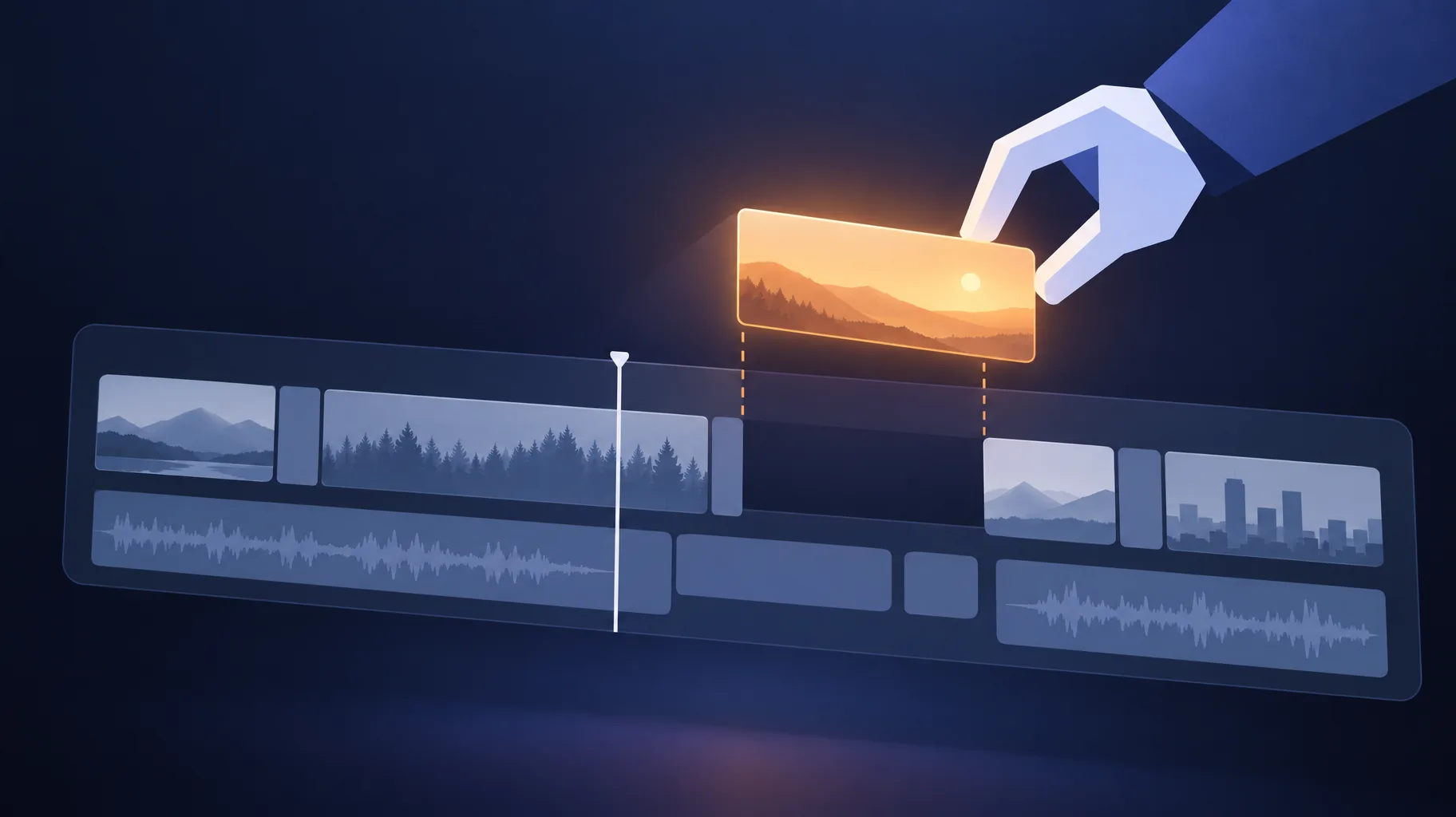
Can You Fix One Bad Section of an AI Video Without Regenerating It?
Yes, you can fix part of an AI generated video with range-based editing. Runway's Aleph 2.0 charges 28 credits/sec with a 56-credit minimum. Here's the math.

TikTok Performance Saturation: What It Means for Faceless Creators
TikTok views and interactions are declining year over year. Learn how faceless creators can adapt formats, retention, testing, and distribution.
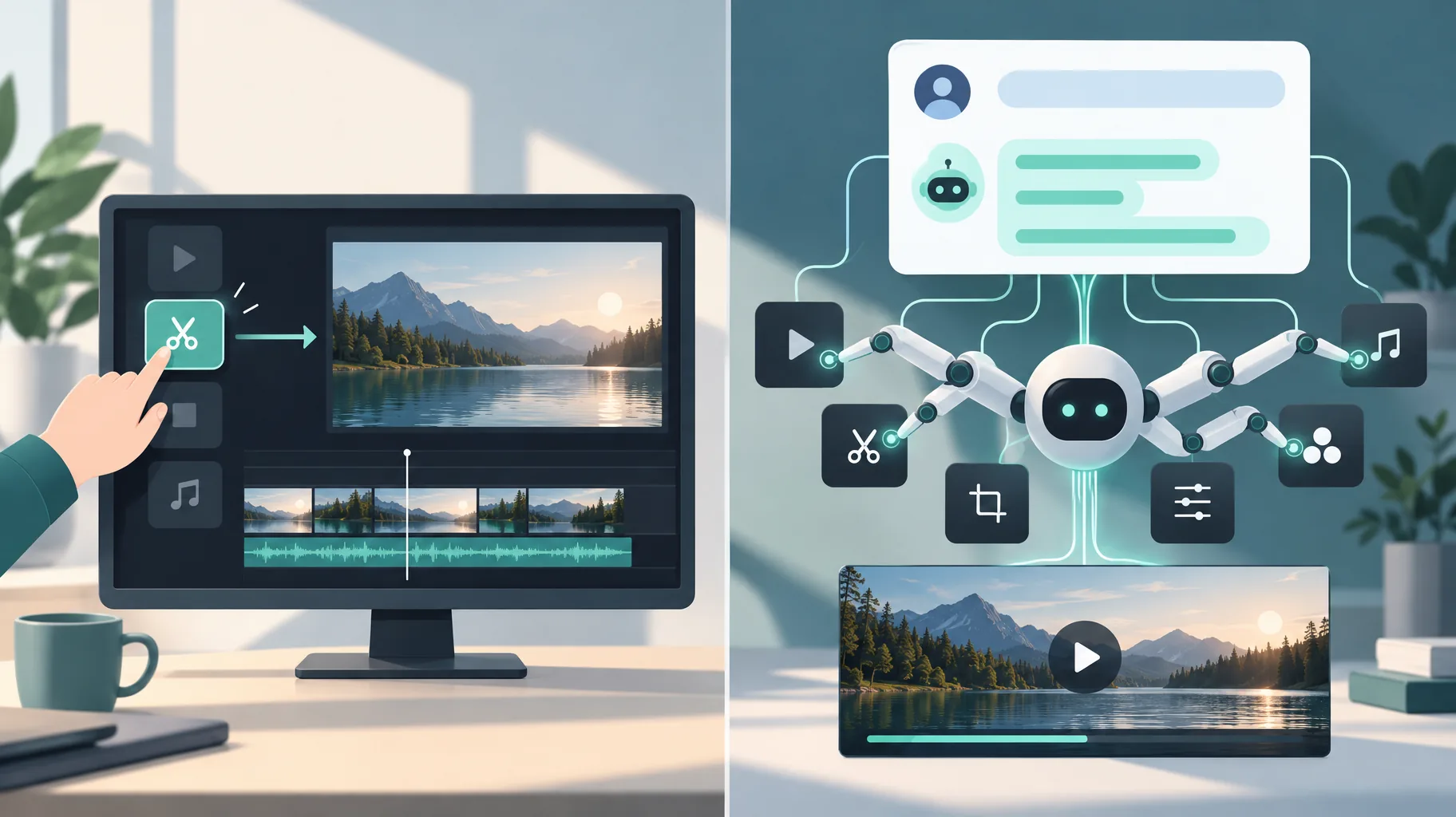
AI Editing Agent vs Manual AI Tools: Which Should Handle Your Edit?
AI editing agent vs manual AI tools: when to delegate an edit to an agent, when to apply the tool yourself, and how each choice affects credit usage.