
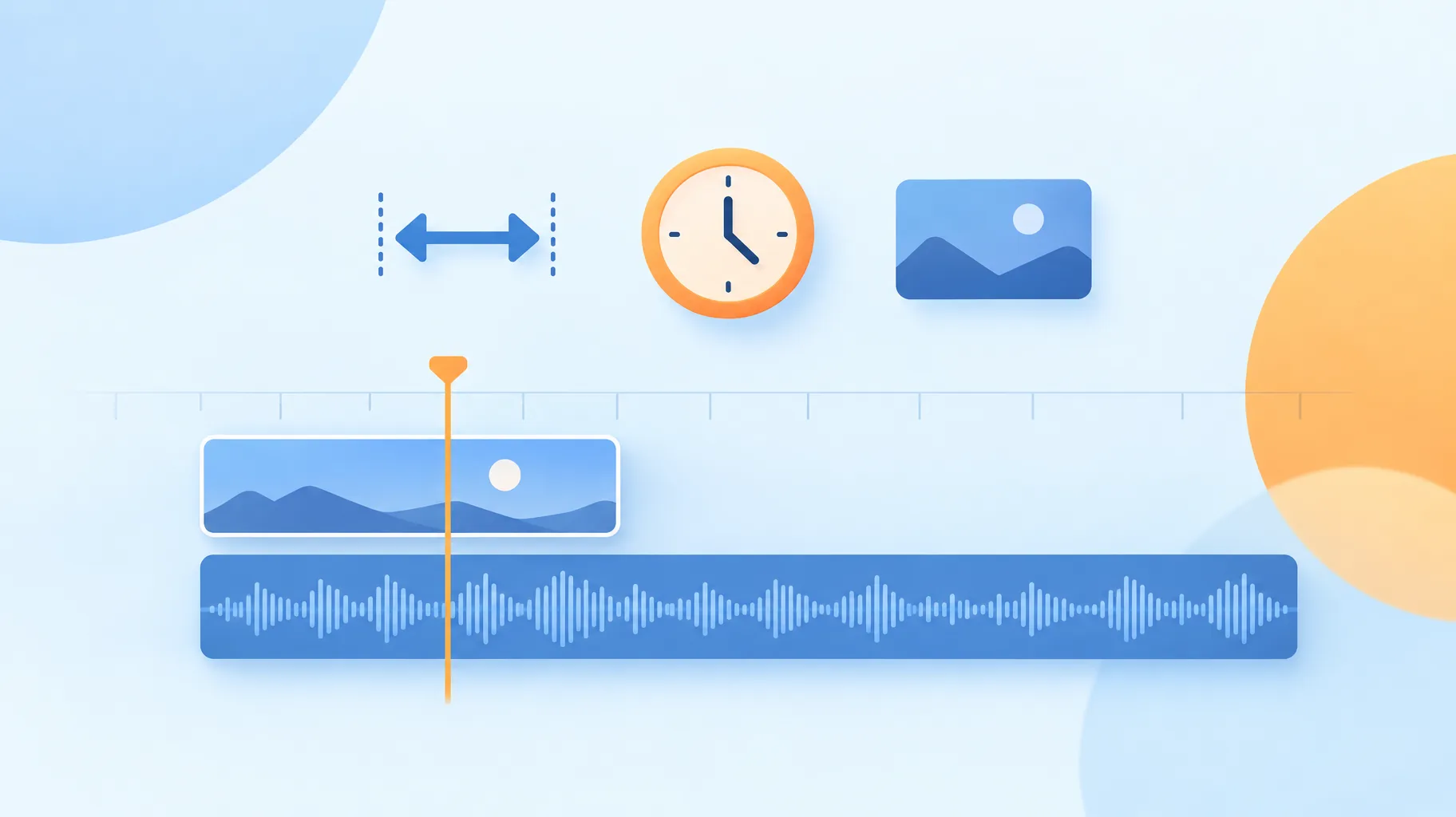
When your video clip is shorter than your voiceover, match the fix to the size of the gap. Extend the visual for gaps up to about 2 seconds, slow the clip down for small gaps in footage without dialogue, and add or replace a shot for anything larger. Generative extension can fill visual time but cannot create missing narration.
Key takeaways:
- Adobe's Generative Extend in Premiere, documented in a FAQ updated June 4, 2026, extends a clip by up to 2 seconds of video or 10 seconds of audio.
- Generative Extend cannot create or extend spoken dialogue, and any existing dialogue in the clip is muted during the extension.
- Clips containing music are not eligible for Generative Extend; supported audio extension covers room tone and background sounds.
- Slowing a clip below roughly 90% speed makes motion visibly sluggish, so retiming suits only small gaps in ambient footage.
- For gaps over 2 seconds, adding a second relevant shot is usually faster and looks better than any extension trick.
Your three options when a clip runs short, compared
A video clip that is too short for the voiceover has three practical fixes: extend the visual with a generative tool, retime (slow down) the existing clip, or add or replace the shot entirely. Each has a hard ceiling, and the right choice depends on two things: how many seconds you are missing, and whether the clip contains dialogue or music.
| Option | Max gap it covers | Works with dialogue in clip? | Works with music in clip? | Visible side effect |
|---|---|---|---|---|
| Generative extension (Adobe Premiere) | Up to 2 seconds of video | No: dialogue is muted during extension | No: music clips are ineligible | AI-generated frames at the clip's tail |
| Slow down (retime) the clip | Roughly 5-10% of clip length | Yes, but pitch/timing of speech shifts | Yes, but tempo audibly drags | Motion looks sluggish past ~90% speed |
| Add or replace a shot | Unlimited | Yes | Yes | A cut, which viewers expect anyway |
The limits in the first row come from Adobe's Generative Extend FAQ, updated June 4, 2026, which documents extensions of up to 2 seconds of video or 10 seconds of audio.
chart
{"version":"visualization.v1","kind":"bar","title":"Maximum extension Generative Extend can add","unit":"seconds","value_suffix":" s","points":[{"label":"Video","value":2},{"label":"Audio (room tone, background sound)","value":10}],"sources":[{"label":"Adobe Generative Extend FAQ, updated June 4, 2026","url":"https://helpx.adobe.com/dk/premiere/desktop/edit-projects/edit-with-generative-ai/generative-extend-faq.html"}],"alt_text":"Bar chart showing Generative Extend adds at most 2 seconds of video and 10 seconds of audio.","insight":"Video extension tops out at 2 seconds, so it can only repair small visual timing gaps."}
Which should you choose?
- Gap under 2 seconds, no dialogue, no music in the clip: use generative extension. It was built for exactly this case.
- Gap under 1 second on ambient b-roll: slowing the clip to 90-95% is often faster than generating anything.
- Gap over 2 seconds, or the clip contains speech or music: add another shot. A cut to a second relevant visual is invisible to viewers and has no duration ceiling.
Can AI extend a stock video to fit my narration?
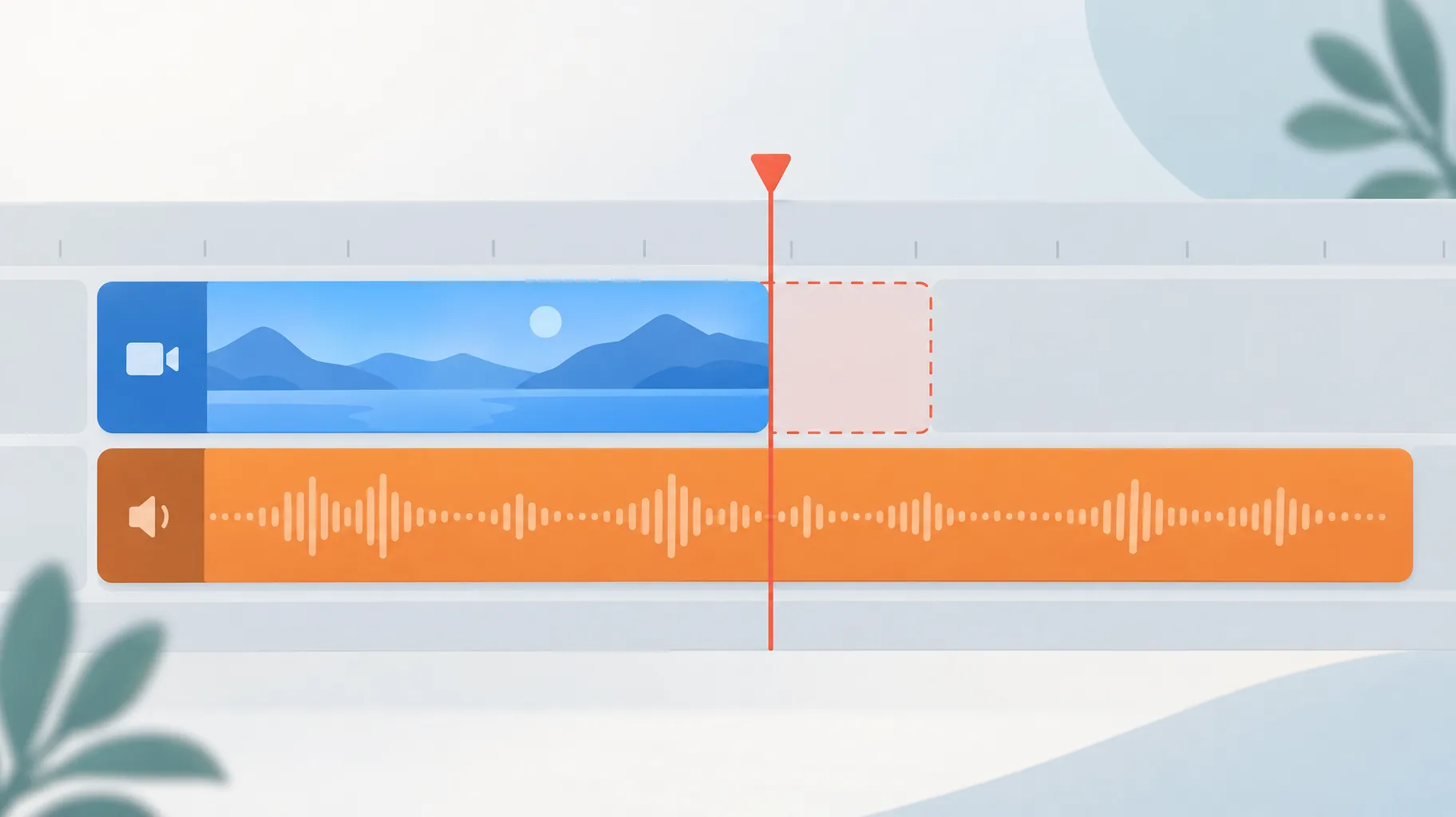
Yes, but only within tight limits. Adobe's Generative Extend in Premiere can append AI-generated frames to the end of a clip, and its official FAQ caps that at 2 seconds of video. That is enough to let a voiceover line finish over the same shot, but it is not enough to stretch a 4-second clip under a 9-second sentence.
The practical workflow for a stock-based explainer:
Step 1: Measure the gap. Drop the narration on the timeline and note exactly how many frames the clip falls short.
Step 2: Check the clip's audio. If it contains dialogue or music, generative extension is off the table (details below).
Step 3: Extend if the gap is under 2 seconds; otherwise plan a second shot.
Step 4: Preview at full speed. Generated frames can drift from the original motion, and a mismatch is more noticeable than a clean cut.
If you find yourself extending clip after clip, the underlying problem is usually that the script was written before the visuals. Writing narration to a fixed shot list, as covered in how to make an AI video follow your script word for word, prevents most of these gaps from appearing at all.
How many extra seconds can generative video extension add?
Generative Extend adds up to 2 seconds of video or up to 10 seconds of audio per extension, according to Adobe's documentation updated June 4, 2026. The audio figure is larger because the supported audio content is ambience: room tone and background sounds, which are far easier to synthesize convincingly than moving images.
Two implications follow from those numbers:
- A 2-second video ceiling means extension is a repair tool, not a generation tool. It patches a shot that almost fits; it does not turn a short clip into a long one.
- The 10-second audio ceiling applies to non-musical, non-spoken sound. You can carry room tone under a pause, but you cannot stretch a music bed or a spoken line this way.
Budget your timeline accordingly: if your narration regularly overruns your stock clips by 3 or more seconds, no extension feature will close that gap, and the fix belongs in shot selection or script length instead.
Should I slow down the clip or add another shot?
Slow the clip down when the gap is small and the footage is ambient; add another shot when the gap is large or the footage has motion a viewer will track. Retiming a 6-second clip to 92% speed buys you about half a second, which is enough for a sentence that ends slightly late. Past roughly 90%, walking, pouring, and panning shots start to look syrupy, and viewers read it as an error rather than a style.
Adding a shot has no ceiling and no motion artifacts. Its only cost is a cut, and cuts are the native grammar of short-form video. For a narrated Short or explainer, a second angle, a close-up, or a related stock clip under the same voiceover line almost always looks more deliberate than a stretched shot.
A quick decision rule:
Slow down when: the gap is under about 10% of the clip's length, the motion is slow or abstract (clouds, textures, slow pans), and the clip has no synced audio.
Add a shot when: the gap exceeds 2 seconds, the clip contains people or fast motion, or you have already retimed the clip once.

What happens to spoken dialogue when a clip is extended?
Spoken dialogue is muted during the extension, and Generative Extend cannot create or extend dialogue at all. Adobe's Generative Extend FAQ states both limits directly: the tool will not synthesize new speech, and any existing speech in the clip is silenced across the generated portion.
For faceless-video creators this matters in a specific way. If your stock clip has a person talking in the background, extending it will cut that audio off mid-word. The cleaner approach is to strip or duck the clip's original audio entirely (common practice for stock b-roll anyway) and let your narration be the only voice. If the dialogue in the clip is the point of the shot, extension is the wrong tool; you need a longer take or a different clip.
Can I extend a clip that contains music?
No. Clips containing music are not eligible for Generative Extend, per Adobe's FAQ. The audio extension the tool does support is limited to room tone and background sounds, the kind of continuous ambience that can be looped and blended without a listener noticing.
If your clip has a music bed baked in, your options are:
- Replace the audio: mute the clip's music and lay your own track underneath, then extend the now-silent visual if the gap is under 2 seconds.
- Add a shot: cut to a second clip and keep the music running across the cut, which hides the transition.
- Shorten the narration: trim a clause so the line ends with the clip.
Music licensing adds a second reason to keep music out of your source clips: if you plan to monetize, verify the footage itself is cleared, as covered in using free stock footage in monetized YouTube videos.
Can generative extension create missing words in my narration?
No. Generative extension works on visuals and ambient audio; it cannot synthesize speech, so it cannot add a missing word, fix a mispronunciation, or finish a sentence your voiceover cut short. Adobe's documentation is explicit that the tool cannot create or extend spoken dialogue. Visual timing fixes and narration fixes are separate problems.
If your narration itself is wrong or incomplete, the fix is to regenerate or re-record that line in your voiceover tool, then re-time the visual to match. That is also where revision costs live: some AI voiceover tools charge credits per regeneration, so check whether voiceover revisions cost credits before iterating on a line.
An assembly platform like GoFaceless (our own product) handles this as two separate steps: it generates the narration from your script, then assembles stock or AI-generated visuals to fit each line, so a short clip is solved by swapping in another appropriate shot rather than by trying to synthesize footage or speech that was never there. That is one way to do it; a manual timeline with the decision rules above gets you to the same place.
Putting it together: a 3-second worked example
Say your narration line runs 7 seconds and your stock clip runs 4. The gap is 3 seconds, which is over the 2-second extension ceiling, so extension alone cannot fix it. Your realistic options:
Option A: Extend the clip by 2 seconds and slow it to 95%, gaining roughly 2.2 seconds total, then trim one word from the script. Workable, but fragile.
Option B: Cut at 4 seconds to a second relevant shot for the remaining 3 seconds. Two clips, one cut, no artifacts. This is what most editors would do.
Option C: Split the narration line across two shots from the start, which is how the video would have been planned with a shot list.
Option B wins in almost every case, and it takes less time than coaxing option A into looking natural.
Fix the gap in your next video
If you assemble faceless videos regularly, GoFaceless turns a topic or script into a finished video with narration, matched visuals, and captions in one pass, so short-clip gaps are handled at assembly time. You can try it on your next script, or browse free faceless-video topic ideas if you are still choosing what to make.
Sources & further reading
Keep reading

How to Make an AI Video Follow Your Script Word for Word
How to make an AI video follow your exact script: choose an exact-script workflow over prompt generation, then verify narration and captions against approved text.

Stock Footage vs AI Visuals for Faceless Videos
Compare stock footage and AI visuals for faceless videos, including engagement, viewer trust, and YouTube, TikTok, and Vimeo labeling rules.
Can You Fix One Bad Section of an AI Video Without Regenerating It?
Yes, you can fix part of an AI generated video with range-based editing. Runway's Aleph 2.0 charges 28 credits/sec with a 56-credit minimum. Here's the math.