
Save seven records for every AI-assisted video: all script versions and planning notes, the prompts and generation settings used, both selected and rejected outputs, source assets with their licenses, the editing timeline or project file, a dated log of your own revisions, and release records linking the final upload to everything behind it.
Key takeaways:
- The U.S. Copyright Office's January 29, 2025 report says sufficient human-authored expression, creative arrangements, or modifications can qualify for protection, while "merely supplying prompts" does not.
- YouTube's monetization appeal instructions require creators to visually demonstrate how channel content was filmed or edited, and tell creators not to delete videos before appealing.
- Prompts and generation settings are the easiest records to lose and the hardest to reconstruct, so save them at generation time, not after publishing.
- A production archive supports explanations of your work; it does not create copyright and does not guarantee monetization approval.
The seven records below are ranked by how hard each one is to reconstruct once production ends, so the files you cannot recreate come first.
1. Which script versions and planning documents should I keep?
Keep every script version from first outline to locked final narration, plus the topic brief, research notes, and any fact sources you checked. Dated drafts are the clearest evidence that a human shaped the video's expression: the Copyright Office's January 29, 2025 report says sufficient human-authored expression can qualify for protection, while merely supplying prompts does not. A folder showing the text evolving across three or four dated versions demonstrates decisions; a single final script demonstrates only an endpoint.
Save: the brief or topic note, every draft with a date in the filename, the locked narration script, and pronunciation or style notes given to the voice tool.
Why it ranks first: scripts are small text files, yet creators routinely overwrite them. Version your filenames (v1, v2, final) instead of editing one document in place.
2. Should I save prompts as well as the outputs I used?
Yes, and save the settings with them. For every generation that produced a candidate, record the full prompt text, the tool used, the date, and the visible settings: aspect ratio, duration, style preset, voice model, seed if shown. Prompts alone do not establish authorship, but paired with your drafts they show how you directed the tool. Settings are nearly impossible to reconstruct later because interfaces and revision rules change. ElevenLabs, for example, introduced two conditional free website regenerations on September 5, 2024, while its current documentation says website free-regeneration allowances do not extend to API requests, so whether a revision costs credits depends on where you ran the generation. Your records should capture which interface you used.
Save: prompt text, tool and model name, settings screenshot or copied values, date, and cost in credits if shown.
3. Why keep rejected outputs and not just the final selects?
Keep the output you used, the near-misses you rejected, and a one-line note on why each reject lost. Rejected candidates demonstrate selection, which is a creative decision, and they show the range the tool produced before you intervened. Tag technical failures separately from creative rejects, because they have different economics: Runway's current policy automatically restores credits for generation errors but not for completed outputs that miss the prompt, so getting credits back for an unusable clip follows different rules depending on which kind of failure your archive records.
Save: the selected render, the two to five strongest rejected candidates per scene, and a one-line rejection reason for each.
Skip: every broken or garbled render. Keep one example per failure type if you want a record for support requests.
4. How should I connect source assets to the finished upload?
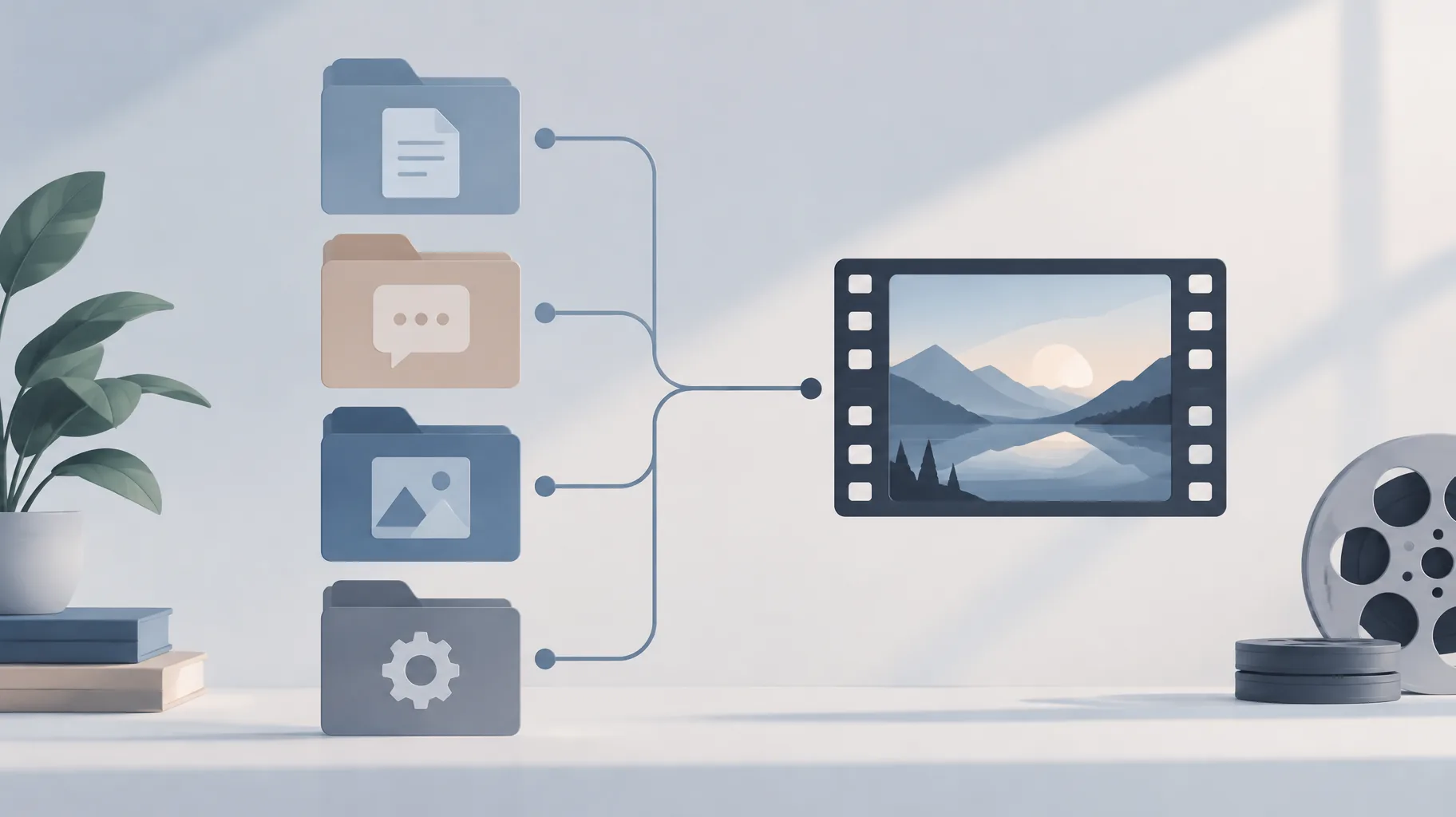
Keep every non-generated input (stock clips, images, music, recorded voiceover) together with its license or permission record, plus a simple manifest mapping each asset to the scenes where it appears. The manifest is what turns a pile of files into evidence: YouTube's appeal instructions ask creators to visually demonstrate how content was filmed or edited, and a scene-by-scene asset map lets you show exactly where each sourced clip sits in the finished video.
Save: the asset file, the license or receipt, the source URL, and a manifest row per scene: scene number, asset filename, source, license type.
A plain spreadsheet works. One row per scene, five columns, under ten minutes per video.
5. What does an editing timeline show that a final video does not?
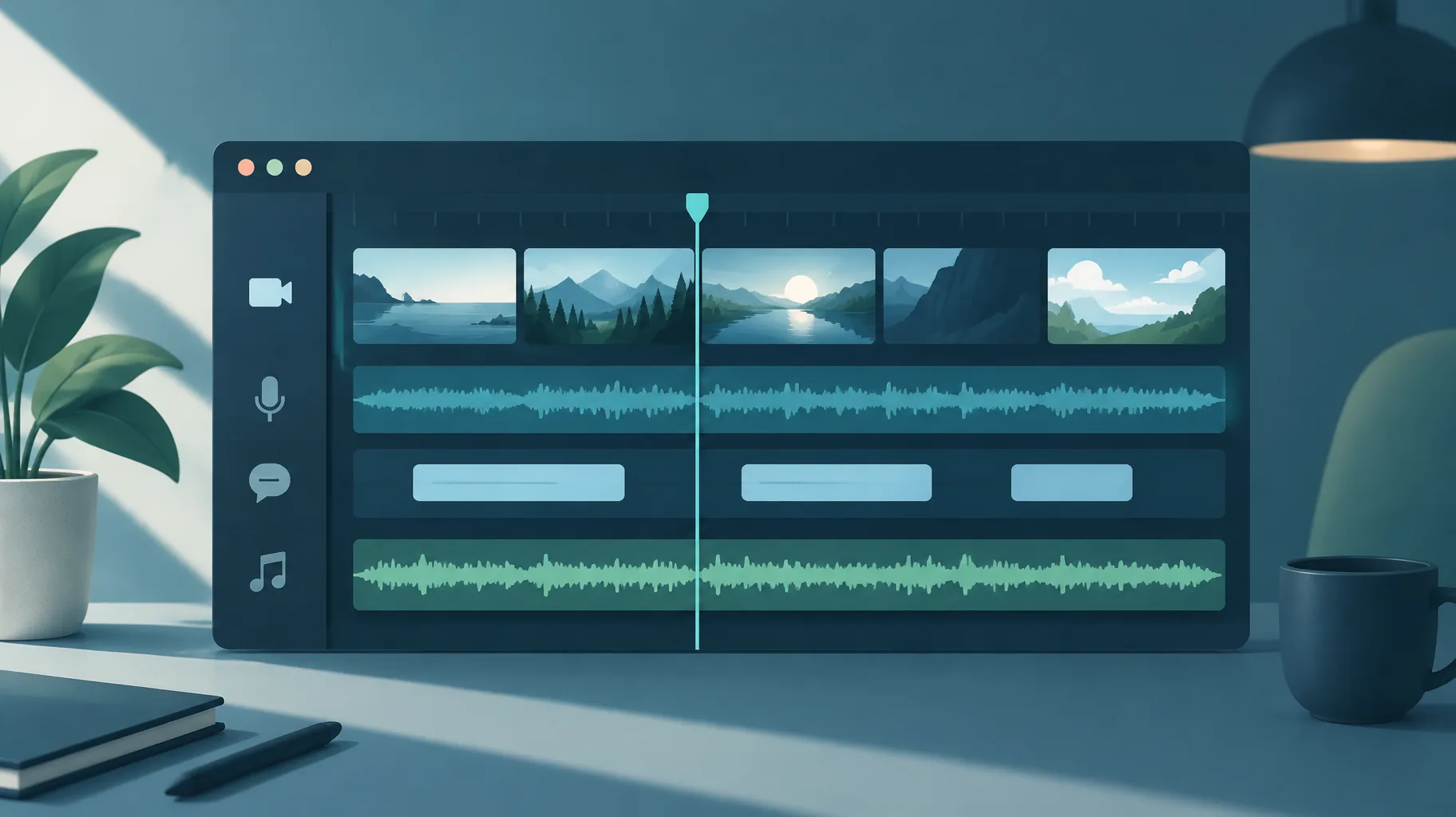
An editing timeline shows cuts, layering, captions, transitions, pacing, and the arrangement of AI-generated and human-made material, none of which survives in the flattened export. That arrangement matters because the Copyright Office report says creative arrangements and modifications of AI-generated material can qualify as human authorship, and that including AI-generated material does not automatically disqualify a larger human-authored work. The timeline is where that arrangement physically lives. If you are weighing whether you own the copyright to an AI-generated video, the timeline is the record that shows your contribution rather than the tool's.
Save: the native project file, plus a full-timeline screenshot or screen recording, since project files can become unreadable when software changes.
6. How can I document my own editing and creative decisions?
Keep a short, dated revision log of the changes you personally made: rewrites, reordered scenes, re-recorded lines, replaced shots, caption corrections. One line per decision is enough. This log is the fastest answer to the question "what did a human actually do here?" because it lists interventions the other records only imply. Ten lines written during production beat a page of reconstruction written during a dispute.
Save: a plain text file per video with the date, the change, and the reason. Example: "Nov 3: swapped scene 4 visual, original clip missed the prompt; rewrote line 2 of the hook for clarity."
7. What release records should I save for each upload?
Save the published URL, upload date, final title and description, thumbnail, disclosure settings, and the final exported master file, all tied back to the project folder. Release records should capture the live state of the upload, not just your local copy, because YouTube says channels are assessed in their current state and instructs creators not to delete videos before submitting a monetization appeal. Also note where the topic idea came from and which hook you used, so winning patterns stay repeatable; a free library of proven video hooks gives you named hooks to reference in those notes.
Save: URL, date, title, description, thumbnail, disclosure setting, master file, and a link back to the project folder ID.
Does keeping production records guarantee copyright protection or monetization approval?
No. Keeping records does not create copyright, and it does not guarantee monetization approval. The Copyright Office report describes what qualifies for protection: human-authored expression, creative arrangements, and modifications can qualify, while merely supplying prompts does not. Records document that contribution; they cannot substitute for it. The same logic applies to YouTube: the appeal instructions ask you to demonstrate how content was filmed or edited, and an archive makes that demonstration concrete, but the outcome still depends on the channel as a whole. Treat the archive as supporting documentation, never as a claim in itself.
What should I preserve if a monetization dispute has already started?
Freeze everything first. Do not delete videos, because YouTube explicitly instructs creators not to delete before appealing, and the appeal must address the channel as a whole rather than individual uploads. Then export whatever lives inside your tools. An AI faceless-video platform's project workspace, such as GoFaceless, can hold scripts, scene choices, and revision history where those features exist; export independent copies rather than relying on the account alone, since access can change mid-dispute. Finally, assemble the seven records above for your most representative uploads, and plan the demonstration itself, which you can do without showing your face.
Start the archive with your next video
The cheapest time to save a record is the moment it exists, so build the seven-file habit into your normal export step rather than retrofitting it later. If you want one workspace that produces the script, voiceover, visuals, and captions in a single pass, GoFaceless is one option, and you can start a project while still keeping independent copies of everything that matters.
Sources & further reading
Keep reading

How to Maximize YouTube Shorts Revenue
Maximize YouTube Shorts revenue with monetization eligibility, higher-RPM niche choices, music decisions, and long-form growth tactics.
AI Voiceover API vs Web App: Which Fits Your Workflow?
AI voiceover API vs web app: compare retry rules, revision costs, and logging overhead, with a decision table and a low-risk pilot plan for creators.
How to Make an AI Video Follow Your Script Word for Word
How to make an AI video follow your exact script: choose an exact-script workflow over prompt generation, then verify narration and captions against approved text.